
This Functionality is pending release
Overview
The Cascade Teams app now sends notifications straight to your users' Teams Activity Feed, and it needs a one-time approval from your Microsoft 365 admin to switch them on.
With the latest update (v2.0.0), users get a Teams notification when:
- Someone requests an update from them (via a Cascade report)
- A scheduled update is due
Clicking the notification takes them straight to the update flow in Teams, so they can post updates without leaving the place they already work.
If your organization already uses the Cascade Teams app, it upgrades automatically. Everything keeps working as usual, but notifications won't send until an admin grants consent. Consent is given once per Microsoft tenant.
Before you start
You'll need two things:
- An admin who can grant tenant-wide consent in Microsoft Entra ID (formerly Azure AD). This is usually a Global Administrator, Privileged Role Administrator or Cloud Application Administrator, depending on your organization's policies.
- Your Microsoft Entra Tenant ID. You can find it in the Microsoft Entra admin center under Overview, listed as Tenant ID.
It takes a couple of minutes, and nothing in your Cascade workspace changes. Your plans, metrics, dashboards and notification settings all stay as they are.
Permissions the app requests
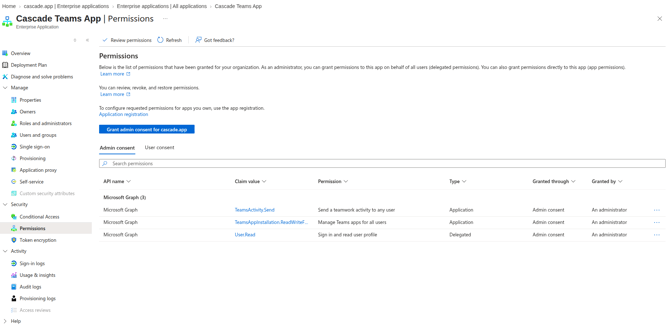
The update adds two Microsoft Graph application permissions on top of the sign-in permission the app already uses.
|
Permission |
New? |
What Cascade uses it for |
|---|---|---|
|
|
No |
Signs users in to Cascade inside Teams |
|
|
Yes |
Sends update requests and scheduled update reminders to a user's Teams Activity Feed |
|
|
Yes |
Checks whether a user has the Cascade app installed, so notifications only go to people who have it |
Cascade only sends notifications for update requests and scheduled updates. It doesn't post to channels or send any other notification types through Teams.
How to grant admin consent
- Copy your Tenant ID from the Microsoft Entra admin center.
- Take the consent link below and replace
{tenant-id}with your Tenant ID:
https://login.microsoftonline.com/{tenant-id}/adminconsent?client_id=4ad0ff10-9f9e-4b3a-8a55-100276ca0a55- Open the link in your browser and sign in with your admin account.
- Review the permissions Microsoft lists for the Cascade app, then select Accept.
- That's it. Notifications start reaching users who have the Cascade app installed in Teams.
You only need to do this once for your whole organization.
Optional: pre-install the app for your users
Notifications only reach people who have the Cascade app installed in Teams. Users can install it themselves, or you can pre-install it for them to get everyone up and running at once. It's your call.
Notifications start when a user has the app installed and stop if they uninstall it.
FAQs
Do I need to update the app myself? No. Teams upgrades the existing Cascade app from v1.0.3 to v2.0.0 automatically.
Do I need to grant consent for every user? No. Consent is given once for your whole Microsoft tenant.
What happens if I don't grant consent? Users can keep using Cascade in Teams as they do today. They just won't get Teams notifications, and they'll see a warning that admin consent is required.
Why aren't users getting Teams notifications? Check that admin consent has been granted and that the user has the Cascade app installed in Teams.
What happens if a user's session has expired when they click a notification? They're asked to sign in, then taken straight back to the item.
Can I control which notifications are sent? Not currently, there's no admin or user setting to turn individual Teams notification types on or off. Teams notifications are limited to update requests and scheduled updates.
Does the Teams app replace the full Cascade product? No. It gives users a simpler way to see their work and post updates in Teams. They can open Cascade in the browser for everything else.
Still stuck? Contact support@cascade.app and we'll help you get set up.