
Tapestry can extract strategic facts from documents you upload, turning meeting notes, reports, project briefs, and other files into suggested goal updates without any manual re-entry.
There are two ways to upload files: via the File Hub or as an attachment on an update. Each has different visibility and sharing behaviour, so it's worth understanding both before you start.
File Hub uploads
The File Hub is the primary place to upload documents you want Tapestry to process. Use it for files that relate to your goals but aren't tied to a specific update, such as strategy documents, project reports, or board packs.
To upload a file:
- Navigate to the File Hub from the main navigation.
- Select Upload file and choose your document.
- When prompted, select the users or teams you want to share the file with.
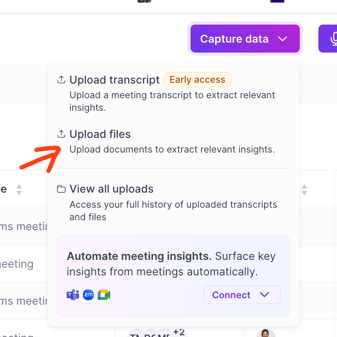
Who can see your files:
Only you and the users or teams you selected at upload can view files in the File Hub. Organisation admins and Cascade staff cannot access your uploaded files.
Who can see facts extracted from your files:
Tapestry will only surface facts to users the file was explicitly shared with at upload. If a colleague wasn't included when you uploaded the file, they won't see any facts derived from it, even if they share the same goals.
Attaching a file to an update
You can attach a file directly to an update on a goal. This is useful when a document is directly relevant to a specific update you're posting and you want it available to readers alongside your commentary.
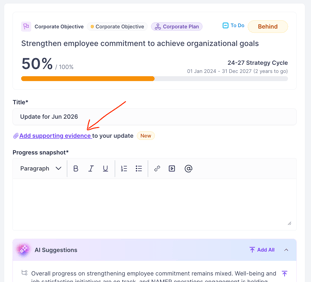
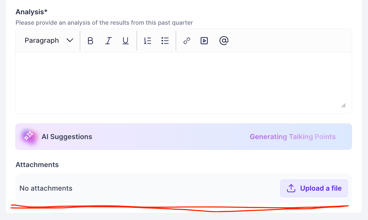
Who can see attached files:
Anyone who can view the update can view the attachment. If the update is visible to your team or a wider audience, the attachment will be too. Check you're comfortable with this before attaching sensitive documents. Links to the file will appear anywhere you can see the update, sidebars, reports etc.
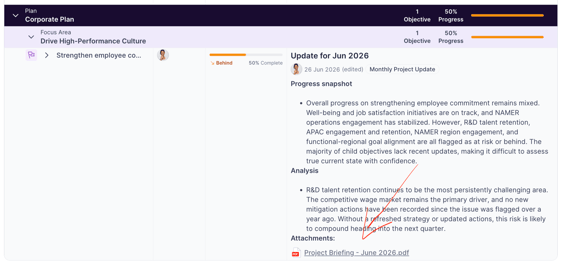
Who can see facts extracted from attachments:
Facts extracted from an attachment are only available to you, the uploader. Other users can read the update and open the attached file, but they won't see any facts Tapestry extracted from it.
Comparison at a glance
| File Hub | Update attachment | |
|---|---|---|
| Who can view the file | Uploader + explicitly selected users/teams | Anyone who can view the update |
| Who can see extracted facts | Uploader + explicitly selected users/teams | Uploader only |
| Admin/Cascade staff access | No | No |
| Best for | Strategy docs, reports, reference material | Supporting a specific update |
Supported file types
Tapestry can process most common document formats, including PDF, Word (.docx), and plain text files. PowerPoint and Excel files are supported but may have limited support depending on their content and complexity. e.g. Spreadsheets full of metric updates are best uploaded directly to metrics.
Tips for best results
- Be specific. Files with clear, structured content tend to produce the most useful facts. Project status reports, board updates, and meeting notes all work well.
- Check your sharing settings at upload. Fact visibility is set at the time of upload and cannot be changed retroactively for that upload.
- Review before posting. Extracted facts are suggestions. Review and edit them before posting as a goal update.
- File size. Cascade currently has a 20mb per file limit. Ensure your file is <20mb to upload as context or attach to updates.
Privacy and data handling
Tapestry processes uploaded files entirely within Cascade-managed infrastructure. No file content is sent to third-party services for inference, and files are never used to train AI models. For full details, see Responsible AI in Cascade.