
Tapestry Connect captures business context from the places you work and pre-writes updates to streamline how you use Cascade
How to Setup
To start using Tapestry Connect you'll need to set it up inside your Cascade account there are two ways to do this inside the app
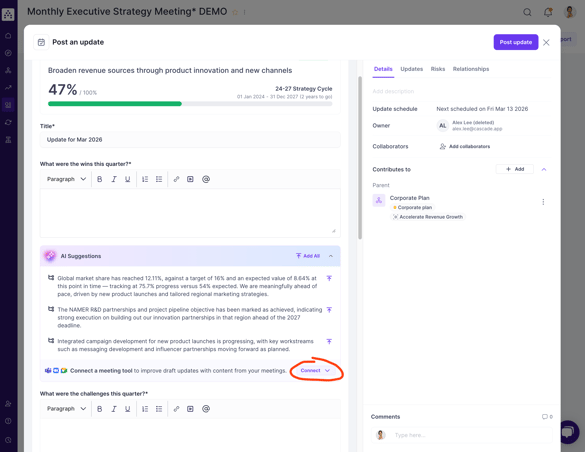
1. Setup when completing an update
Connect directly from any goal update with suggestions.
2. Setup & Manage from your user profile
Connect and disconnect tapestry from your user profile. For a step by step guide click here.
NOTE: Initial configuration may require admin approval from your Microsoft workspace administrator (often your IT or Security team). Review this guide for detailed setup.
Tapestry Powered Updates
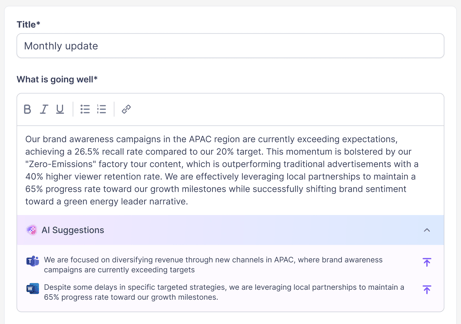
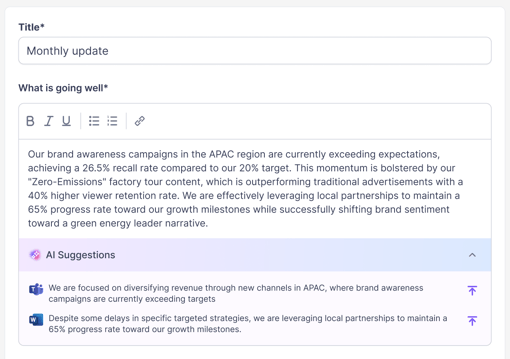
Once connected Tapestry Connect enriches the update suggestions your teams see across the product. These suggestions from meetings are available only to the attendees of each meeting unless shared in an update.
FAQs
Which tiers is Tapestry Connect available on?
Enterprise. Tapestry connect will be available as early access for all customers through to June 2026.
How do my users connect to Tapestry?
Once approved at your workspace level, your team will be able to connect their teams meetings directly from the update flow or their user profile (under the connected accounts tab).
Does a “Cascade” bot join my meetings?
No, this integration won’t join your meetings. Cascade grabs recorded meeting transcripts via the Microsoft Graph API. This relies on the existing Teams & CoPilot meeting transcription. If a meeting isn't transcribed it won't be available to Tapestry Connect.
What does it have access to?
Tapestry Connect has access to:
-
Your meeting recordings - Required to gain access to the recording transcripts.
-
Scheduled events in your calendar - Cascade uses this to determine the attendees at the meeting to match insights from the meeting to only the attendees goals.
Which meetings are processed?
Tapestry reviews all meetings that have been transcribed. However, only meetings that contain insights for goals will be processed and used to suggest updates.
How long does Cascade retain transcripts for?
Cascade doesn’t store raw meeting transcripts beyond the time it takes to process them. Transcripts are typically on Cascade’s systems for < 24hrs during initial processing. Processed insights related to goals and meeting metadata like attendees and the title of the meeting are stored to provide product functionality.
Can other people see my recordings?
No, other people can’t see your Recordings or Transcripts within Cascade.
-
Cascade doesn’t access, store or use video recordings.
-
Full transcripts are used only to process suggestions, are not made available within the product and aren't stored on Cascade infrastructure after initial processing.
-
Summarised information from your meeting transcripts is only shared when you explicitly make an update on a goal and have included suggestions from that meeting in the update.
Does Cascade use our video recordings?
No, we don’t store or process the video or audio recordings at all.
What if people say inappropriate, sensitive or confidential things in a meeting?
We take privacy very seriously.
-
Transcripts are never directly shared. Cascade also doesn’t retain raw transcripts beyond initial processing.
-
Only search for goal updates - Cascade specifically looks for insights related to the attendees goals only. Conversations about the weekend, the weather or complaints about your boss are discarded.
-
Filter small talk and sensitive topics - We have multiple layers of filtering that remove inflammatory comments about people, small talk and general chat.
-
Suggestions are Private and Sharing is explicit - Insights extracted from conversations are only available to the attendees of that meeting until they are shared in updates. No other features (AI or non-AI) in Cascade have access to meeting insights.
Can I disconnect Tapestry Connect?
Yes, Tapestry Connect can be disconnected by a user at any time. This can be done from the “Connected Accounts” tab on the users profile in Cascade by clicking Manage→Disconnect for each integration.
Once disconnected Tapestry Connect will no longer have access to your integrated account and will immediately cease processing meetings.