
To enable Tapestry Connect on your account, your Zoom administrator may need to approve the connection. When trying to connect, you will see a message indicating that administrator approval is required. To request approval, select 'Request pre-approval' at the bottom of the screen.
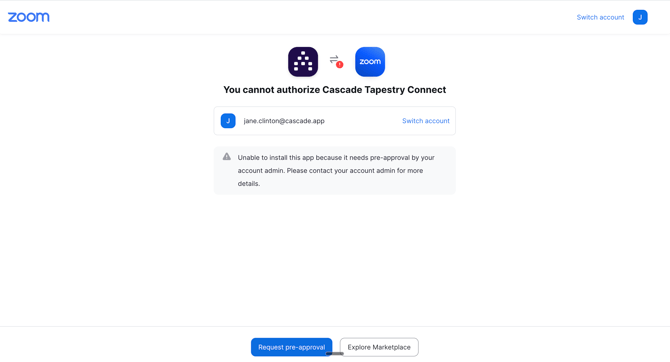
An email will be sent to your Zoom administrator notifying them of your request. You will then be taken to your Zoom account, where you will see the new request.
.png?width=670&height=362&name=image%20(6).png)
Click on the request to view its details, where you will have the option to approve it..
-1.png?width=670&height=364&name=image%20(7)-1.png)
You'll have the option to approve the connection for just that specific user, or for all users (recommended). Once approved, the user(s) will be able to connect to Tapestry.
Not receiving a request?
If you are not receiving a request, you may need to configure the permissions in your Zoom account. For users to be able to request Tapestry, the option to 'allow users to request apps' must be enabled.
.png?width=670&height=361&name=image%20(8).png)
Alternatively, you have the option to disable the approval process if you do not want your users to require one.
Switching on Tapestry connect on behalf of your users
Inside the Zoom Marketplace, search for Cascade Tapestry Connect. From here, click the 'Add for Others' button.
.png?width=670&height=363&name=image%20(4).png)
You will see the option to add Tapestry Connect to either:
a) All Zoom users b) Users & Groups c) Yourself
If you choose to add Tapestry for other users, their Zoom account will be automatically connected with no action required on their side.
.png?width=670&height=364&name=image%20(5).png)