
For Tapestry Connect to be enabled on your account, you must have approval from your MS Azure administrator.
follow the Visual step by step Guide or follow the instructions below:
Note: The permission scopes are now tighter and we no longer request files.all or chat.all access.
1.You will receive a notification from Microsoft Azure letting you know that you have a new request.
2. In Azure start by navigating to Enterprise Application
3. Then select Admin Consent Requests
4. You will see a pending request, listed in the 'My Pending' tab. Select the request called 'Cascade'
5. This will open a sidebar where you will see the details of the request and have the option to review permissions and consent
6. You will be prompted to pick a Microsoft account
7. You will be prompted to review the request
8. Once the request is accepted your users will be able to use Tapestry Connect!
Each user must still opt-in to using Tapestry Connect on their account this approval does not automatically switch it on for all users.
Requested scopes
-
Chat.ReadBasic - Allows read access to the users chat meatadata (not message content), to assist in finding call transcripts.
-
OnlineMeetings.Read - Allows access to the authenticated users online meetings.
-
OnlineMeetingTranscript.Read.All - Allows reading ALL types of the users meeting transcripts (note: Teams has multiple types of meetings depending on how the meeting was started/scheduled).
-
User.Read - Allows fetching user metadata. Tapestry Connect requires this for matching email addresses between Teams and Cascade to replicate meeting transcript permissions.
Allow Teams Transcript access.
Microsoft has recently introduced a new tenant-level control that governs whether applications can read Teams meeting transcripts through the Graph API. This control defaults to off. Despite you granting access to transcripts in the above steps, you will need to enable API access within teams as well.
Step 1 — Sign in to the Teams admin center
Go to https://admin.teams.microsoft.com and sign in with your Microsoft 365 administrator account.
Step 2 — Open Meeting settings
Depending on which version of the admin center you see:
New experience: go to Settings & policies → Meetings.
Classic experience: go to Meetings → Meeting settings.
Step 3 — Find the "Transcript API Access" section
Scroll to the Transcript API Access section.
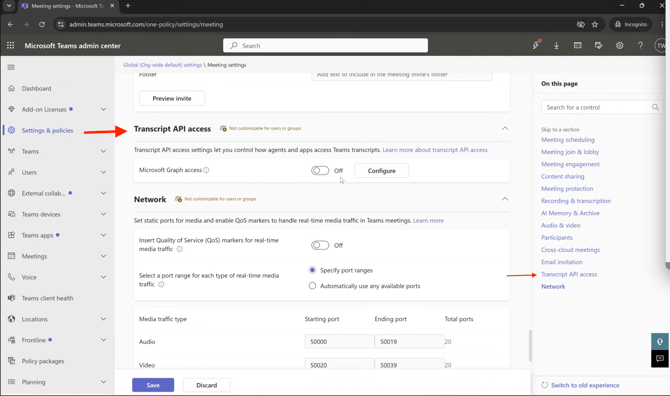
Step 4 — Turn on Microsoft Graph access
Enable the Microsoft Graph access toggle.
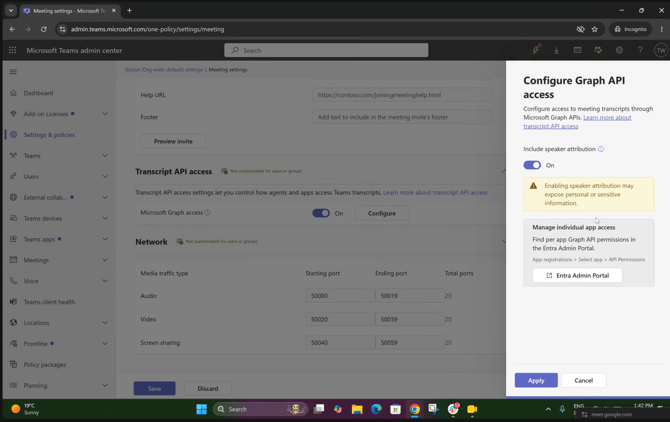
Step 5 — Enable speaker attribution
Next to the toggle, click Configure, then turn on speaker attribution.
Tapestry Connect relies on speaker information to match meeting participants to your users, so this step is required — not optional.
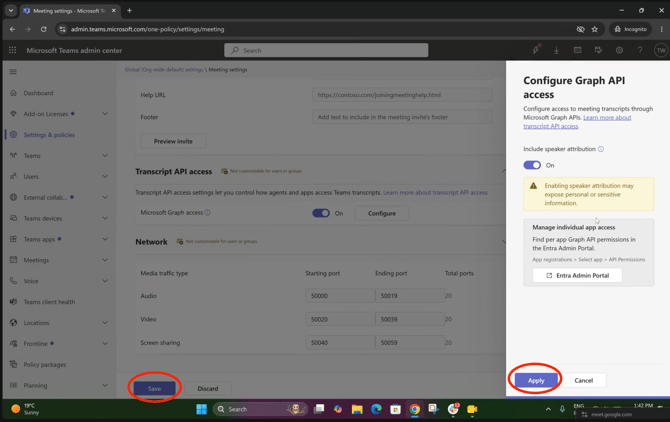
Step 6 — Save
Save your changes.
Ensure you hit Apply on the speaker attribution step and Save on the main settings page.
Not receiving a request?
If you are not receiving a request, you may need to configure an admin consent workflow in your Microsoft account. You can learn more about it here.