
What's happening
Microsoft has introduced a new tenant-level control that governs whether applications can read Teams meeting transcripts through the Graph API. This control defaults to off. Now that Microsoft has begun enforcing it, applications that previously had transcript access — including Tapestry Connect — no longer receive transcripts unless an administrator explicitly turns the setting on.
As a result, Tapestry Connect is currently unable to pull meeting transcripts.
The fix is a one-time configuration change in your Microsoft Teams admin center. Once enabled, transcript syncing will resume automatically — no changes are needed on the Tapestry Connect side.
Who needs to do this
A Microsoft 365 / Teams administrator in your organization, with permission to manage Teams meeting settings. This is typically your IT admin or whoever manages your Microsoft 365 tenant.
Before you start
- This takes about 5 minutes.
- You'll need admin access to the Teams admin center (
admin.teams.microsoft.com). - The change applies tenant-wide.
Instructions
Step 1 — Sign in to the Teams admin center
Go to https://admin.teams.microsoft.com and sign in with your Microsoft 365 administrator account.
Step 2 — Open Meeting settings
Depending on which version of the admin center you see:
New experience: go to Settings & policies → Meetings.
Classic experience: go to Meetings → Meeting settings.
Step 3 — Find the "Transcript API Access" section
Scroll to the Transcript API Access section.
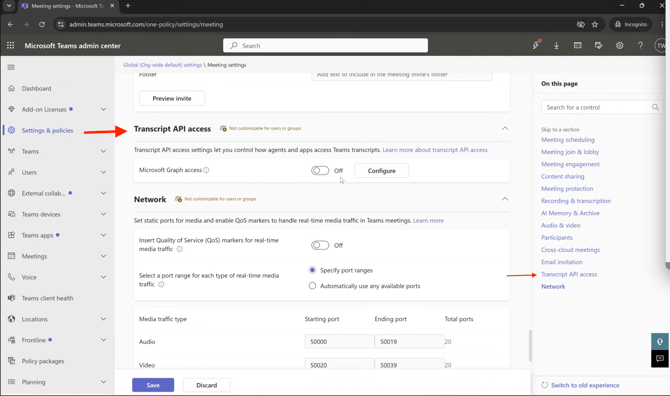
Step 4 — Turn on Microsoft Graph access
Enable the Microsoft Graph access toggle.
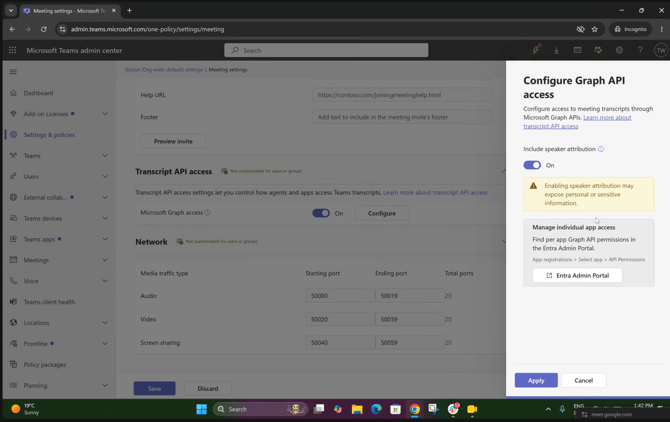
Step 5 — Enable speaker attribution
Next to the toggle, click Configure, then turn on speaker attribution.
Tapestry Connect relies on speaker information to match meeting participants to your users, so this step is required — not optional.
Step 6 — Save
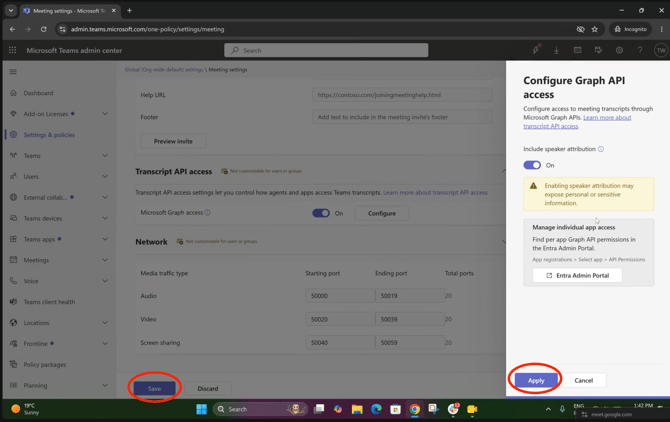
Save your changes.
Ensure you hit Apply on the speaker attribution step and Save on the main settings page.
After you've made the change
Transcript syncing will resume automatically on the next sync cycle. You don't need to reconfigure or reconnect Tapestry Connect.
If meetings haven't started appearing after 6 hours , contact us at support@cascade.app and we'll help you check.