
In Cascade, you can customize access to your plans to protect sensitive data or control who can make changes. While Roles define what a user can do across the entire workspace, Plan Permissions define what a user can do within a specific plan.
By default, all Plans in the workspace have "Can Edit" access upon creation. There are three standard access levels that can be applied (Can Edit, Can View, No Access):
| Permission Level | What Users Can Do | Best For... |
| Can Edit | Any user can add, delete, or move goals and post updates across the entire plan—even if they aren't an owner or collaborator. | Maximum collaboration and transparency. |
| Can View | All users can see everything but cannot make changes. Exception: Owners and Collaborators with this access can still edit the specific goals they are assigned to but only view the rest of the plan |
Maintaining visibility while ensuring only those responsible can update their work. |
| No Access | The plan is private. It is hidden from everyone in the workspace except for Admins, Goal Owners/Collaborators and specific users who have been given explicit permission. From there, you can manage individual edit or view permissions for those specific users | Restricted sensitive departmental data. |
Managing Permissions
Once you're in the plan, click on "Share" (located beside the plan name)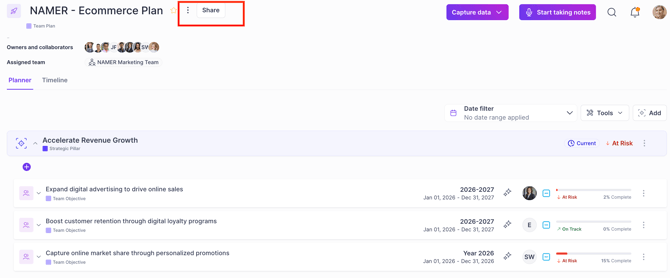
Then choose your access model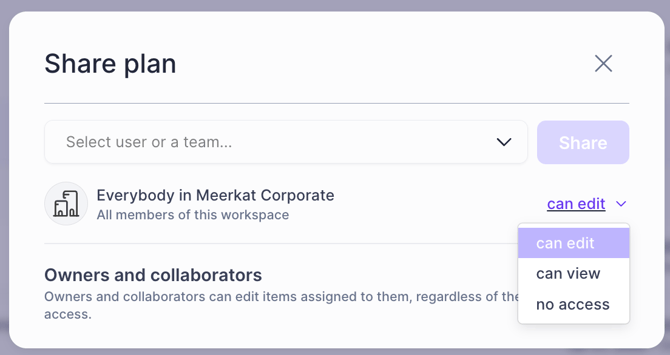
-
If you set to either Can Edit or Can View for everybody in the workspace, it'll acts as a "blanket permission" for all users.
- If you need to limit access to specific teams or individuals:
-
Step 1: Set the permission to No Access. This makes the plan private.
-
Step 2: Use the search bar to find and select specific Teams or Users.
-
Step 3: Assign each selected team or user their specific permission level (Can Edit or Can View)
-
Pro-Tip: The "Team" Advantage.
We highly recommend managing permissions by Teams rather than individual users. This ensures that as people join or leave your Team, their access to the plan is updated automatically, saving you from manual admin work later.
User/Team Level Permissions for Private Plans
Even in a private plan, your ability to edit is determined by your specific assignment:
-
When the owners or collaborators are assigned after the plan access is set to can view, then they'll automatically inherit only view access to the plan. However, they'll be able to edit the goals they work on.
-
Even if you're an owner or collaborator of an objective, you'll not be able to edit its success criteria (measures, actions or projects) when you have can view access assigned.
-
If you need users with "Viewers" role to collaborate on a goal, then you can assign them as collaborators. Note that they cannot make any edits or progress updates to that goal, and all they can do is just review and leave comments.
- If the team has a can view access, but the team members own or collaborate on goals, then they'll still be able to edit the goals they work on.
- If a team member is removed from that team, the member will no longer the access that's assigned to the team. However, if the team member owns or collaborates on a goal in the plan or given exclusive view/edit access, then they'll still retain that access to the plan, irrespective of they being removed from the team
User Visibility for Private Plans
If you do not have access to a private plan, then
-
The plan is hidden in the All plans, and the Alignment pages.
-
The objectives, measures, projects and actions in that plan are hidden. You'll not be able to find the objectives of a private plan in the Objectives library, if you try to link or share objectives.
-
The search will not fetch results for entities in a private plan.
-
The updates made on the objectives, measures, projects, and actions are hidden in the Home page. However, if someone tags or mentions a person who do not have access to this plan, they'll be notified but the update will be hidden.
-
The widgets and report tables are exposed if the dashboard/report are "public", however, you'll not be able to see the details when you click into them to view from their Sidebar. And, when you try to edit the widget or report, you'll not be able to select the private entities from the data source.
-
If there's an objective from a private plan that is contributing to a public plan, you'll not be able to see them from the Planner page. However, if you edit that objective from the Sidebar, you'll see a message "This objective contains some private contributing objectives" under the Contributes to area.
-
From the Focus area Sidebar, or when you look at the dedicated Focus area page, the plans and the objectives that are private will be hidden.
Workflow Examples
Scenario 1: User With "Can Edit" Plan Permissions- You have the authority to manage the entire plan’s structure, not just your own individual goals.
- User Persona: Typically a Manager or Team Lead.
- [Click here to see what a user with "Can Edit" access can and cannot do]
- In this workflow, you have "Read-Only" access to the plan as a whole:
- If this user owns goals in the plan: You retain full "Edit" rights for the specific goals where you are listed as an Owner or Collaborator.
User Persona: Typically an Individual Contributor or a member of a cross-functional team.
- If this user owns goals in the plan: You retain full "Edit" rights for the specific goals where you are listed as an Owner or Collaborator.
-
- If you do not own any goals in the plan: You can only observe and comment.
User Persona: Stakeholders, Executives or a 'viewer' role in Cascade.
- If you do not own any goals in the plan: You can only observe and comment.
- [Click here to see what a user with "Can View" access can and cannot do]
Users that have an Admin role will inherit the view and edit access, by default.
User that have Viewer role can read and review all accessible plans, but cannot edit details or update progress.
FAQs
How do I know if a plan is private?
You'll see a privacy label across the plan name in the Access column in the Plans page.
If the parent plan is set to private and you do not have access to it, then you'll see the child plans unaligned in the Alignment page and in the Parent plan column, you'll see Private plan instead of the parent plan name.
Why are the focus areas of a private plan visible to everyone?
We do not have privacy permissions for focus areas because focus areas are mostly used as a strategic pillar in which the same focus area(s) can be shared across multiple plans to drive the strategy outcome/alignment. For example, when you create a new plan you can add an "existing" focus area in which all focus areas need to be visible to add this. Although you have a private plan with focus areas only in that private plan, this does not make the name of the focus area private, it only makes the plan itself private.
What do collaborators do?
Like the name suggests, they collaborate on the goals, i.e., add or edit goals, add the existing users in the workspace to the goals, change owners, due dates and targets, add risks and relationships and so on. However, if you wish to restrict their access only to the goals that they collaborate on, then you can assign them can view access from the Share modal.
If an owner or collaborator is removed from a private plan, will the access permissions be retained?
Yes, they'll still retain their original access to the plan. You can revoke it by clicking remove against their name in the share modal.
Can we restrict permissions at a goal level so that the user cannot edit the plans in which they belong. i.e., if we do not want them to update anything except the goals they work on, and at the same time do not want to change their role as “viewer”?
Yes, you can restrict permissions at a goal level too. Set everyone in the workspace to have can view or no access, i.e., making the plan viewable or private. Expand the Owners and collaborators section, assign can view access against those users whom you wish to restrict permissions at their goal level.
While they'll still be able to view the plans and its components, they'll be able to edit only the goals they own or collaborate. Even if they own or collaborate on an objective, they'll not be able to edit its success criteria (measures, actions or projects).
Can a viewer be granted edit permissions? What happens if they're assigned as owner or collaborator in a plan?
No, if they're assigned as owner or collaborator, they would get added to the share modal with a "can view" access.
I'm drafting an early version, and do not want it to be available to a wider audience. However, I want a few of them to weigh in and give feedback alone.
You can set the plan as private, i.e., "no access" to everyone in the workspace, and give "can view" access to the relevant people from the Share modal. Those who have "view access" can weigh in on your plan.
Can we restrict access and permissions to certain parts of the plan?
No, granular level of access is not supported. Access control is applied to a plan as a whole and cannot be restricted to certain elements of it. If you do not wish to expose some objectives, then we suggest to break down the plan, and move those objectives to a separate plan, and make it accessible to a smaller group.
Can we lock down some fields in the sidebar so that only particular users can edit the locked fields?
No. In this case, you can give "can view" access to those people instead of "can edit" so that they do not have permission to edit these fields.
I want the objectives in a private plan to be shared with a public plan but it should not be available to everyone in the workspace.
Yes, in this case only the Admins and the owners and collaborators of those objectives will see this shared objective in the public plan. This objective will be hidden for the others.
What happens when someone who is not an owner or collaborator of a private plan is tagged in the updates or comments made in the plan? Will they automatically inherit edit access?
No. If they're tagged in an update, then they'll receive a notification that someone has mentioned them in an update. However, the update will be hidden when clicking on the notification. Also, it'll be hidden from their home page as well.
In case of being mentioned in a comment, there'll be no notifications and this information is completely hidden.
What happens if a private objective is contributing to a public objective or shared with a public plan?
For users who do not have access to the private plan where this objective sits, they'll not be able to see the contributing objective in their plan. However, when they try to edit their objective from its Sidebar, they'll see a message - "This objective contains some private contributing objectives".
What happens to Updates when a plan is converted to private or when an objective in which the update was made is moved to private plan?
All the updates created before the release of private plans will still be visible even if a plan is converted to private. All subsequent updates made after the plan is set as private will be hidden (includes new updates from an existing plan after it is converted to private).
If you move an objective from a public plan to a private one, all previous updates will remain public. You will need to manually delete them if you want to keep them private. All new updates for that objective will be hidden from users who do not have access to the private plan.
What happens when a report has data from a private plan?
Private data on reports will be visible to all users who have view/edit access to the report.
Users without access to the private plan cannot select it as a data source. They also won't be able to view the full context of the objectives, measures, projects, or actions from the sidebar.
For users who do have access to the private plan, there is a banner on the report, or planner. This banner informs them that the data is public and gives them the option to make the dashboard or report private to keep the information confidential.
Can I export my plan?
Yes, you can export a plan through a report. First you'll need to generate a Report Table and then selecting the specific plan or plans as your primary data source. This allows you to choose columns of data—including default plan components like the strategy element name, time frame, owner, collaborator, health, and progress—to bring in additional context beyond the basic details. Once configured, you can export the full report in your preferred format, either PDF or CSV.