
Updates keep everyone informed about progress on your objectives, measures, projects, actions, and teams. Each update is a snapshot frozen at the time of posting, so you can look back later and compare a goal’s or team’s status over time.
You can post updates from the Sidebar, Goal hub, Home page, My Work, the Teams page, and integrations such as Microsoft Teams (if enabled).
Who can post updates:
- Goal updates: Admins, Owners, and Collaborators of a goal, plus anyone with edit permissions on its plan. Viewers can’t post updates.
- Team updates: Admins and all team members, except users with the Viewer role.
Reminders and scheduled templates:
If reminders are set on a goal, its owner gets in-app and email notifications when an update is due. You can see the next due date in the Reminder schedule section or the Updates tab of the goal’s sidebar. See Set-up Reminders for Goal Updates.
Admins can also set reminders in bulk with the Update schedule field in Admin > Scheduled templates. See Create Custom Update Templates for Goals and Teams.
Post a quick update:
For actions and measures tracked manually or with milestones, you can update progress in seconds from the Sidebar, MyWork, Home page, or inline in the Planner:
- Drag the progress slider or enter the current value.
- Add a short note.
- Click Save.
To add more detail, click Go to full update view.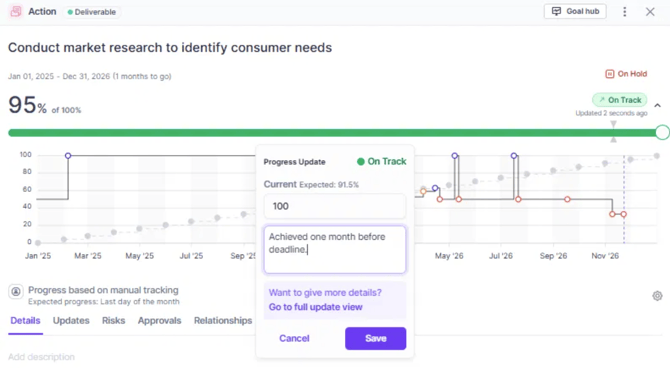
Post a full update:
Click Post Update in the Updates tab of a goal’s sidebar, or follow the link in a reminder notification or email. In the Post an update view:
- Enter a Title.
- Use Update for to set the date the update applies to. It defaults to today.
- Fill in the update fields. If your workspace uses custom templates, you’ll see their fields. Otherwise you’ll see the Standard template. You can format text, add links, embed videos, and tag people or teams with @.
- Optionally, attach a file as supporting evidence (see below).
- Post the update.
Updates on an action, measure, or project appear only in that goal’s Updates tab. They don’t roll up to the parent objective.
A snapshot of the objective/measure/project/action is taken when an update is posted, so that you can view them anytime and analyze the progress or updates at a later time.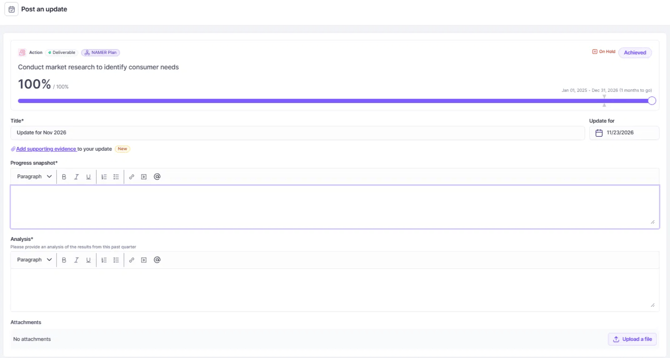
Attach files to an update:
Attach a file when a document directly supports the update you’re posting. Click Add supporting evidence, or Upload a file under Attachments.
- Supported formats: .pdf, .docx, .pptx, and .xlsx. PowerPoint and Excel files may have limited support depending on their content. Spreadsheets full of metric updates are best uploaded directly to measures.
- File size: Up to 20MB per file.
Anyone who can view the update can open the attached file. Links to it appear wherever the update shows, including sidebars and reports, so check you’re comfortable with this before attaching sensitive documents.
Facts that Tapestry extracts from an attachment are visible only to you, the uploader. Other users can read the update and open the file, but they won’t see the extracted facts. Extracted facts are suggestions, so review and edit them before using them in an update.
For uploading files outside of updates, see Tapestry File Upload.
Post team updates:
- Go to the team via the Teams tab of the Plans and Teams page and open its Updates tab, or post from the team’s Home page.
- Click Post a Team Update.
- Choose a template (or Standard), add a title and your message, then click Post Update.
Team updates appear in the team’s Updates tab and under Recent Updates on the team’s Home page.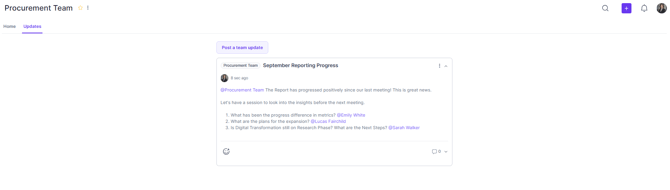
Add comments in the Sidebar:
Comments are available in the Sidebar of goals in your plans. Anyone with “can view” or “can edit” permission on the plan, including Viewers, can comment if the plan is public.
Type in the comment box at the bottom of the Sidebar, tag users or teams with @, and click Comment. To see all comments on a goal, open its Goal hub and go to Activity > Comments.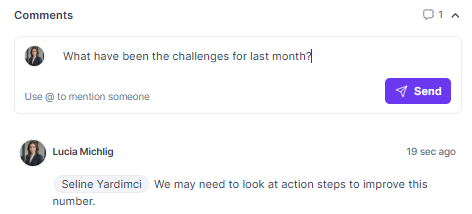
Take notes in Reports:
Notes replace comments in Reports. Cascade can transcribe your meeting and generate a summary that you can edit and share.
- Open a report and click the Notes icon in the toolbar, or click Start taking notes at the top of any page and select the report to link the note to.
- Click Start transcribing and choose:
- I’m talking in person: Uses your mic to capture the room.
- I’m on a video call: Captures audio directly from your screen.
Any manual notes you add are included in the final recap. By starting a transcription, you confirm that everyone being transcribed has given consent.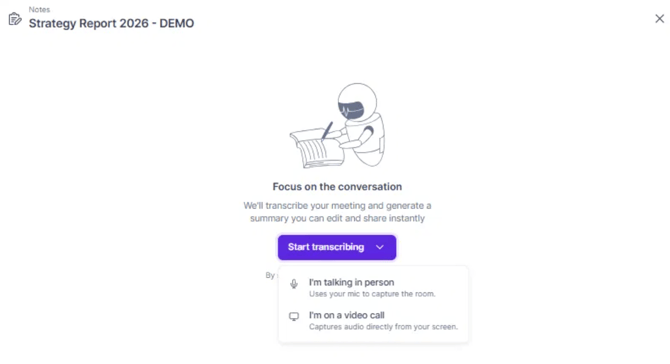
Edit or delete updates and comments:
Only Admins and the author can edit or delete an update or comment. Click the three dots next to it and choose Edit or Delete.
Getting notified:
- Goal and team owners get in-app and email notifications for reminders on their goals, including those set in bulk through scheduled templates.
- Tagged users, including those with view-only access, are notified in-app, by email, or both, depending on their notification settings.
FAQs
What time zone are update reminders sent in?
Reminders are sent in the Sydney, Australia time zone. For example, a Friday reminder goes out Friday morning Sydney time, which is Wednesday or Thursday in the US or Europe.
Can I customize the update?
Yes, Admins can create custom templates. See Create Custom Update Templates for Goals and Teams for details.
What’s the difference between updates, comments, and notes?
Updates are check-ins on a goal or team’s progress, such as a weekly or monthly status. Comments are quick feedback on goals in the Sidebar. Notes capture and summarize meeting discussions in Reports.
Can I pull the updates information in Reports?
Yes. In a table, the Last Update column shows the latest update on each goal.
Why can’t I see my measure’s update in the parent objective?
Updates stay on the goal where they’re posted and don’t roll up. The parent objective’s Updates tab shows only updates posted on the objective itself.