
If you wish to export the report in a CSV format to get the data out of Cascade and use it elsewhere, then you can do so only at an individual widget (table or chart) level.
-
Go to Reports and open the relevant report either in view or edit mode.
-
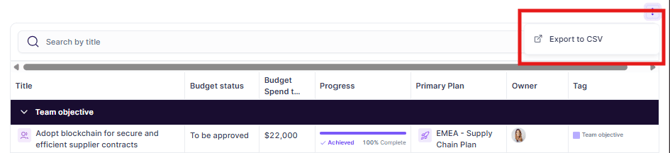
Click the three dots against the table or chart and click Export to CSV.
-
The widget will be exported in a CSV format and be available in your browsers' Downloads.
How to Export a Plan as a CSV
To extract your plan data into an Excel-friendly format, you can use the Table within the Reports section to create a customized data export.
-
Go to Reports.
-
Create a New Report or open an existing one, then click Edit Report in the top right corner.
-
Add a Table: Click the Table widget icon (found in the widget options at the top).
-
Configure the Table:
-
Set the Table Type to Strategy Table.
-
Choose the specific Plan you want to export.
-
Select the columns you would like to include in the export.
-
- Export: In the top right corner of the table widget, click the three dots (⋯) menu and select Export to CSV.
Only those table columns that you've made available in a report table will be available in the exported CSV file. If you wish to have any additional columns, then you need to select those and make it available in the report table before exporting them.