
Use Copy to report to reuse a widget you've already built on another report, without setting it up again. The copy keeps the widget's title and all of its settings, and you can add it to as many reports as you like.
Copy the Widget (Chart or Table)
- Open the report that has the widget you want to copy and click Edit report
- Hover over the widget to show its action buttons.
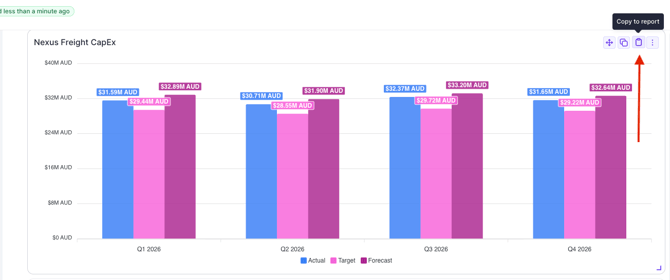
- Click Copy to report. It sits next to the move, duplicate and delete buttons.
Table:
Chart:
The widget flies into the Ready to place tray in the bottom-right corner of the screen. The card shows the widget's title and the report it came from (for example, "From Quarterly Board Meeting"). The tray stays on screen while you move between reports, so you can go straight to the report you want.

Place the widget on a report
-
Open the report you want to add the widget to
-
Click Edit report to switch to editing. Until you do, the card in the tray is greyed out and reads "Edit a report to place it."
-
Add the widget in one of two ways:
◦ Drag the card from the tray and drop it where you want it on the report.
◦ Click the card to add it to the report. -
Click Finish editing when you're done
FAQs
Does the copied widget keep its settings?
Yes. The copy keeps the widget's title and all of its settings, so there's nothing to set up again.
Can I add the same widget to more than one report?
Yes. The widget stays in the tray after you place it. Open another report, switch to editing and add it again.
How do I clear the tray?
Click the X in the top-right corner of the tray to close it.
Does copying change the original widget?
No. The widget on the original report stays where it is.