
To ensure a consistent look across all your reports, you can further customize individual report headings. While these will automatically follow your Workspace Settings, you have the flexibility to adjust them on a report-by-report basis.
Adding a Headline
In Edit mode, add a headline by clicking on the Headline icon in the top-left toolbar. This new headline will automatically inherit your saved workspace branding (logo and colors).
Customizing the Layout
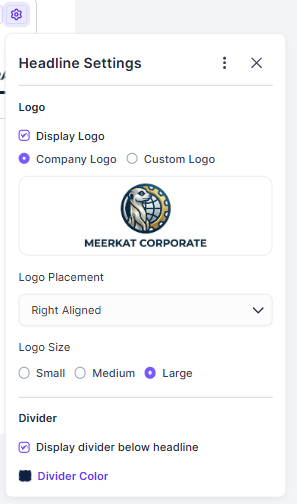
You can further refine the headline by clicking the Settings (gear) icon in the right corner of the headline area. From here, you can:
-
Logo: Choose to hide or display the logo, and adjust its placement and size.
-
Manage Dividers: Show or hide the horizontal divider. You can also change its color using the palette defined in your workspace settings.
-
Sectioning: If you prefer not to include a title, you can use a blank headline with just the divider to neatly section different areas of your report.
Syncing with Workspace Branding
If you have updated your branding but your existing reports still show old logos or colors, use the Reset function:
-
Click the Settings icon on the specific headline.
-
Click on the three dots and select "Reset headline settings".
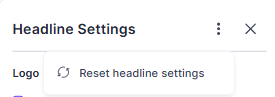
This will instantly apply your new default logo and colors. It will also remove any manual overrides you may have previously applied, reverting the headline to your company's standard default.
FAQs
How can I customize the branding and logo in my Workspace?
Admins can customize Workspace branding and set default report heading within the workspace settings. See Branding & Report Heading