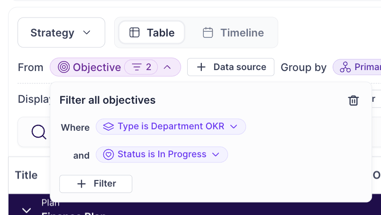
The Objective datasource filters help you create tables focussed on specific goals across the platform.
This filter is great for creating dynamic tables that are simply not possible with plan and focus area options. e.g.
- A view of all Projects from across the workspace
- A view of all At Risk Initiatives (maybe filtered to a specific type of goal or individual)
- A view of all Department Objectives
How it works
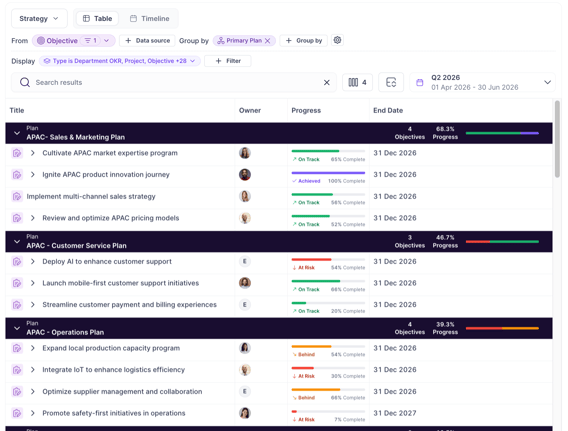
In any report table, you can select the objective datasource from the "+ Data Source" menu (note: this may be labelled something else e.g. goals in your workspace). Choosing the dynamically by filters option allows you to specify filters to select goals by.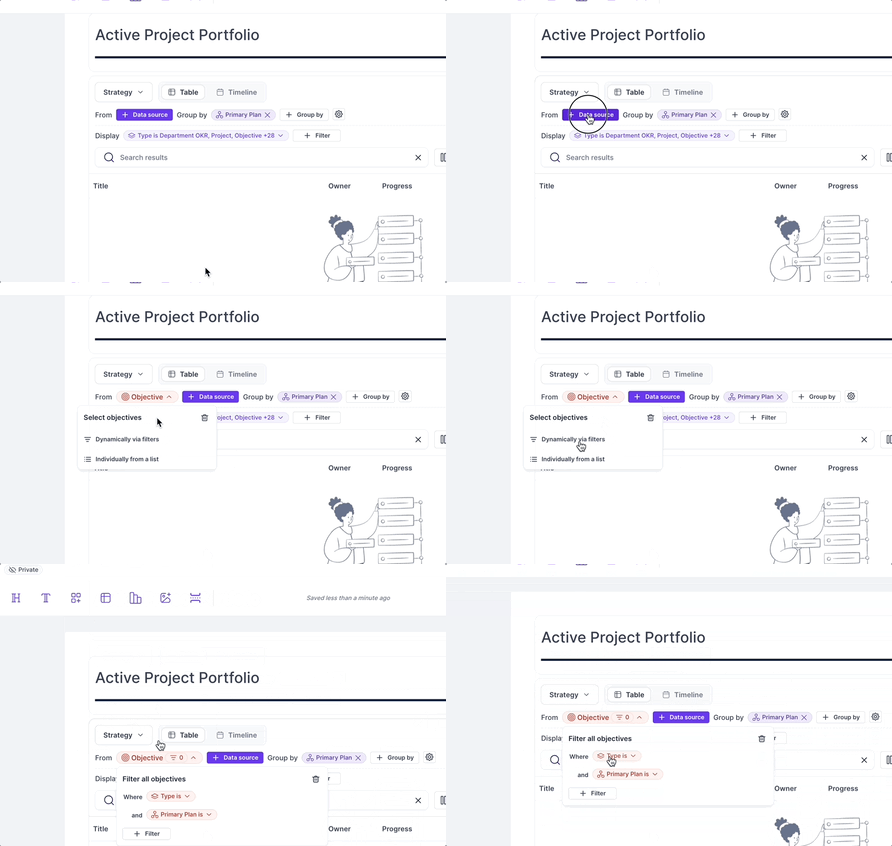
What makes this an "advanced filter" Unlike the regular filter, the filters in the Objective datasource only apply to the top-level items that will show in the table. This means you can do things like selecting all "Projects" that are "At-Risk" from across the workspace and still show all of the contributing actions measures and goals irrespective of if they are At-Risk or not.
Example tables
These objective filters give you massive amounts of flexibility in fetching goals to show from across the workspace.
Create a Project Portfolio view (with all projects from across the workspace).
By setting the filter to select goals where the Type is project, we can create a list of all projects. Using the grouping we can further extend this to group by plan, owner, health status etc.
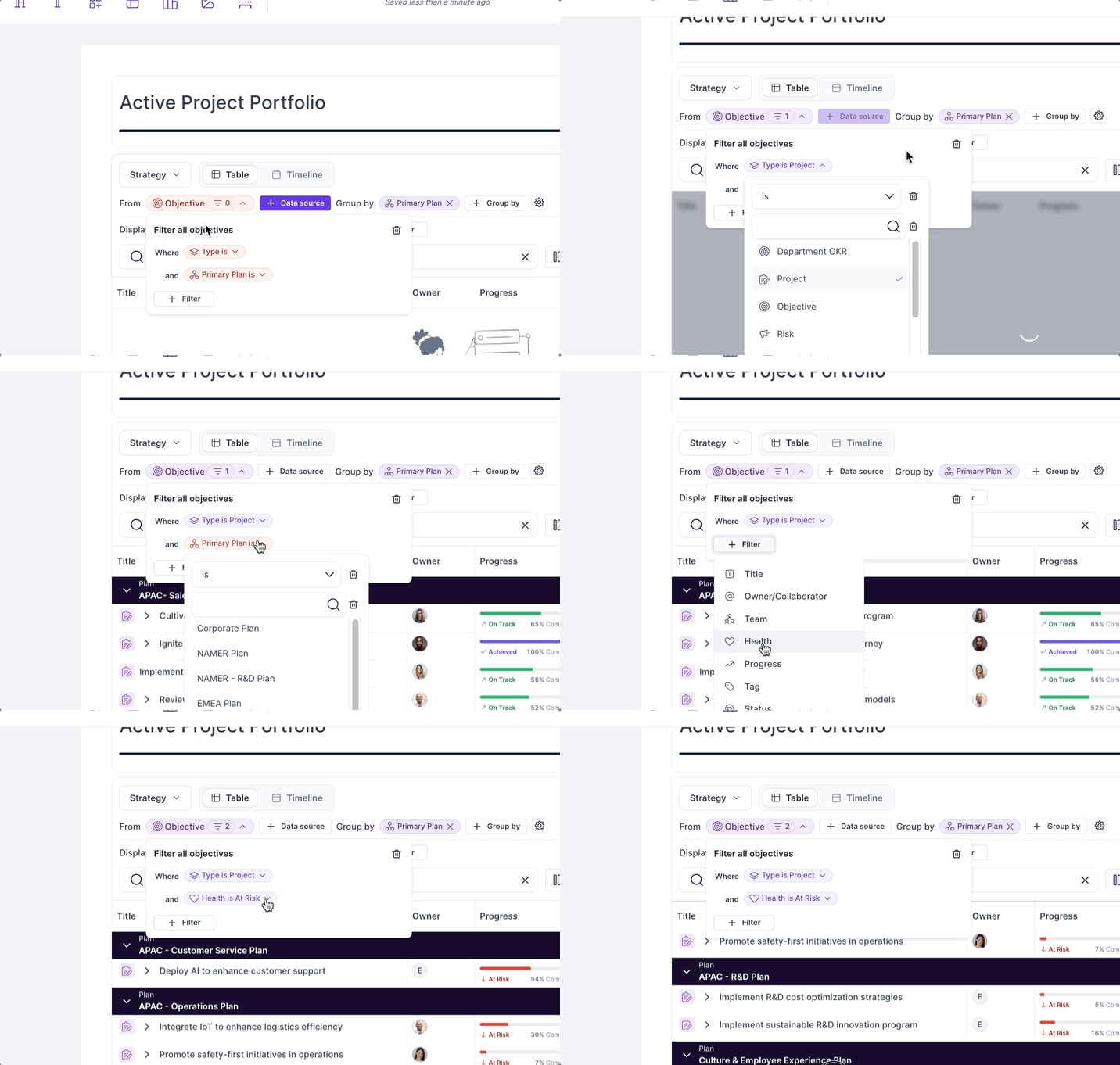
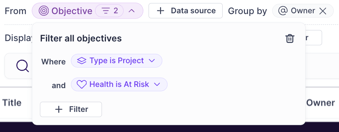
Viewing all At Risk Projects By Owner
By updating the Objective filters to additionally include the "Health" is "At Risk" option, we can produce a table of all Projects in the organisation that are at risk.
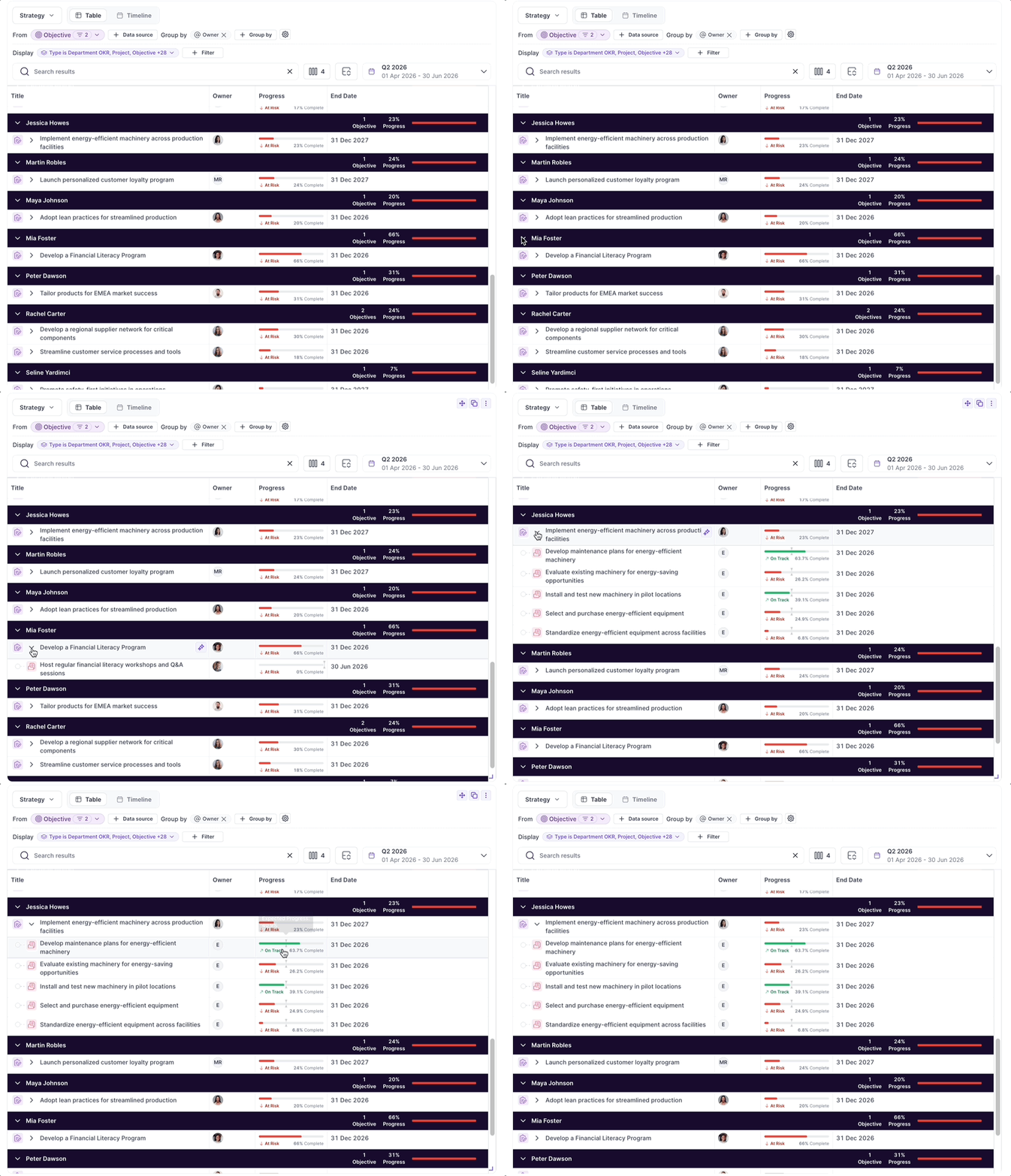
Unlike using the display filters, we can still drill-down from these to see all success criteria irrespective of their health. The Objectives filters only apply to the top layer and are finding any projects whose overall health is at risk. This makes it very easy to understand the entire scope of the project by simply expanding it. The Objective filters can be used in conjunction with normal filtering to refine your results further.
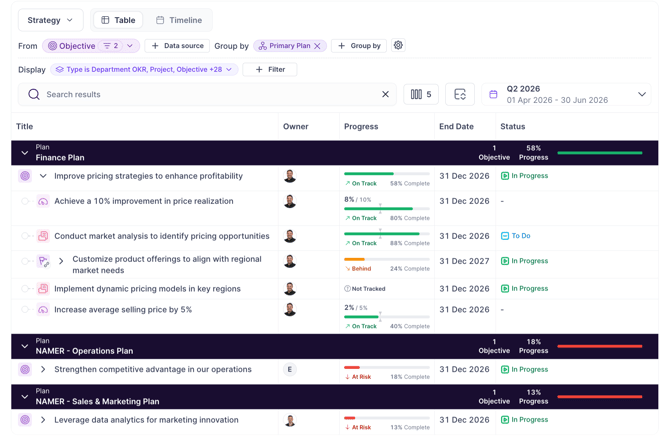
Viewing All In-Progress Departmental Objectives
If your strategy is spread out over multiple plans, it's easy to create a table pulling from department objectives from all plans. In this example, we've pulled all Department OKR's that are In Progress. Similar to the above examples, we can still drill into the contributing goals, measures and actions irrespective of their type or status. Allowing you to see all the details within those Departmental OKRs.